Completed
4. 01:37 Convert worksheet cross tabulated table into an Excel Table BEFORE bringing into the Power Query Editor.
Class Central Classrooms beta
YouTube videos curated by Class Central.
Classroom Contents
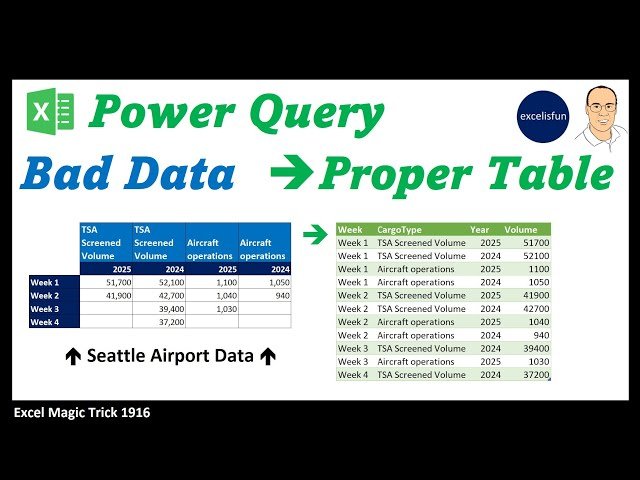
Power Query Unpivot with 2 Column Variables - Bad Data Into Good Data - Excel Magic Trick 1916
Automatically move to the next video in the Classroom when playback concludes
- 1 1. 00:00 Introduction.
- 2 2. 00:31 New Power Query book by Mike excelisfun Girvin
- 3 3. 00:52 How a cross tabulated table translates into a proper table.
- 4 4. 01:37 Convert worksheet cross tabulated table into an Excel Table BEFORE bringing into the Power Query Editor.
- 5 5. 02:55 Use keyboard shortcut to bring Excel Table into the Power Query Editor.
- 6 6. 03:20 Power Query Editor.
- 7 7. 03:46 Transpose table for first time.
- 8 8. 04:00 Rename Steps in Query to make M Code easier to read.
- 9 9. 04:47 Merge fields.
- 10 10. 05:31 Transpose table for second time.
- 11 11. 05:40 Promote Headers
- 12 12. 05:53 Name Week Column
- 13 13. 05:59 Unpivot from Week column, then rename Volume column.
- 14 14. 06:40 Split merged columns and name two new columns.
- 15 15. 07:12 Investigate Volume column to see that there are numbers that represent volumes and text entries to indicate a cyber attack in the same column.
- 16 16. 07:45 Reference base query and create new query named Cargo Records.
- 17 17. 08:10 Filter out Cyber Attack Records.
- 18 18. 08:18 Add Data Types
- 19 19. 08:33 Reference base query and create new query named Cyber Attack Records, including filtering to show only Cyber Attack Records and adding Data Types.
- 20 20. 08:55 Load base query as a connection only and the two proper table queries as new queries on new worksheets.
- 21 21. 09:37 Summary
- 22 22. 09:48 Closing

