Completed
1. 00:00 Introduction.
Class Central Classrooms beta
YouTube videos curated by Class Central.
Classroom Contents
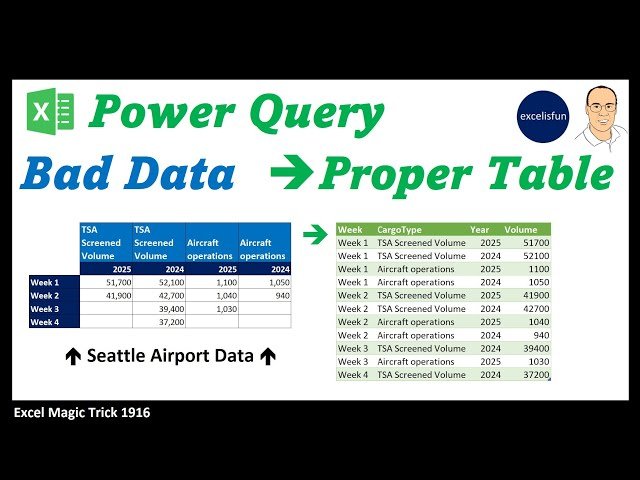
Power Query Unpivot with 2 Column Variables - Bad Data Into Good Data - Excel Magic Trick 1916
Automatically move to the next video in the Classroom when playback concludes
- 1 1. 00:00 Introduction.
- 2 2. 00:31 New Power Query book by Mike excelisfun Girvin
- 3 3. 00:52 How a cross tabulated table translates into a proper table.
- 4 4. 01:37 Convert worksheet cross tabulated table into an Excel Table BEFORE bringing into the Power Query Editor.
- 5 5. 02:55 Use keyboard shortcut to bring Excel Table into the Power Query Editor.
- 6 6. 03:20 Power Query Editor.
- 7 7. 03:46 Transpose table for first time.
- 8 8. 04:00 Rename Steps in Query to make M Code easier to read.
- 9 9. 04:47 Merge fields.
- 10 10. 05:31 Transpose table for second time.
- 11 11. 05:40 Promote Headers
- 12 12. 05:53 Name Week Column
- 13 13. 05:59 Unpivot from Week column, then rename Volume column.
- 14 14. 06:40 Split merged columns and name two new columns.
- 15 15. 07:12 Investigate Volume column to see that there are numbers that represent volumes and text entries to indicate a cyber attack in the same column.
- 16 16. 07:45 Reference base query and create new query named Cargo Records.
- 17 17. 08:10 Filter out Cyber Attack Records.
- 18 18. 08:18 Add Data Types
- 19 19. 08:33 Reference base query and create new query named Cyber Attack Records, including filtering to show only Cyber Attack Records and adding Data Types.
- 20 20. 08:55 Load base query as a connection only and the two proper table queries as new queries on new worksheets.
- 21 21. 09:37 Summary
- 22 22. 09:48 Closing

