Completed
4. 01:43 Fundamental data problem: we do not have store usage records for all customers. We will have to create the data from existing tables.
Class Central Classrooms beta
YouTube videos curated by Class Central.
Classroom Contents
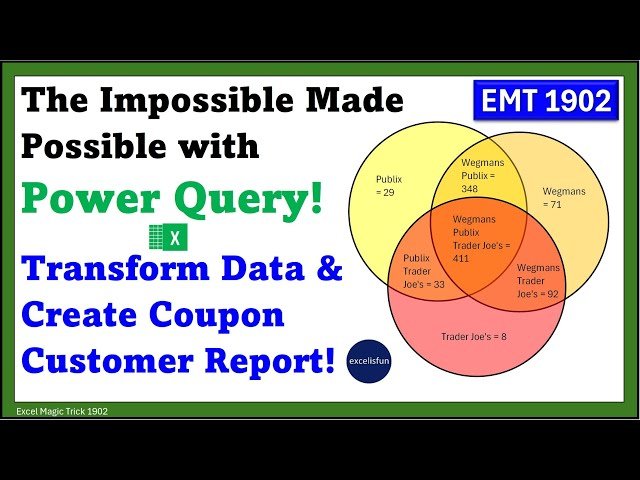
Power Query and M Code to Transform Data and Create Final Marketing Customer Coupon Report - EMT 1902
Automatically move to the next video in the Classroom when playback concludes
- 1 1. 00:00 Introduction.
- 2 2. 00:38 Thanks to Bill Szysz for M Code in this video.
- 3 3. 00:58 Goal for data transformation and final report.
- 4 4. 01:43 Fundamental data problem: we do not have store usage records for all customers. We will have to create the data from existing tables.
- 5 5. 02:04 Download Excel file so you can follow along.
- 6 6. 02:11 Import initial table into the Power Query Editor.
- 7 7. 02:30 Why you always want to remove spaces in M Code Identifiers.
- 8 8. 03:13 Load first table as Only Create Connection.
- 9 9. 03:26 Import second source data table into the Power Query Editor.
- 10 10. 03:31 Remove existing query step.
- 11 11. 03:34 Keep customer & store columns in fSales table.
- 12 12. 03:44 Remove duplicate customer & store records.
- 13 13. 04:36 What is a let expression? And how is structured M Code Syntax?
- 14 14. 06:16 Create left out join using the merge feature: dCustomer table and fSales table.This pulls store names from sales table into the customer table.
- 15 15. 08:19 Reference left outer join query and create intermediate step with customers who used no coupons.
- 16 16. 08:53 Filter to get null records.
- 17 17. 09:09 Group null records to get count and list of customers who did not use coupons.
- 18 18. 10:02 Amend M Code in Table.Group function. We want a list rather than a table.
- 19 19. 11:23 Remove store column from null groupby query.
- 20 20. 11:55 Begin query to create the final report.
- 21 21. 12:11 Filter to remove null records.
- 22 22. 12:22 Why we have to pivot table.
- 23 23. 12:54 Copy store columns.
- 24 24. 13:13 Pivot copied store column with store column as values and the calculations is “Don’t Aggregate”.
- 25 25. 13:56 Groupby feature used on store columns to create count and list of customers in coupon groups.
- 26 26. 15:18 Create custom variable that can create a dynamic set of store names for the Table.Pivot and Table.Group functions. Use the List.Distinct and List.Sort functions.
- 27 27. 17:26 Append Query with Customers who used no coupons to the query with customers who used coupons.
- 28 28. 18:19 Sort Count column Z to A.
- 29 29. 18:26 Create Custom Column with final columns for the final table as lists. Use the Record.ToList and List.RemoveLastN functions, as well as the join operator ampersand, &, and a null list.
- 30 30. 20:55 Create Custom Column with field names for final table.
- 31 31. 22:06 Use the Table.FromColumns function to create the final report table.
- 32 32. 23:25 Load final report and test it.
- 33 33. 24:19 Summary
- 34 34. 24:27 Closing

