Completed
1. 00:00 Introduction.
Class Central Classrooms beta
YouTube videos curated by Class Central.
Classroom Contents
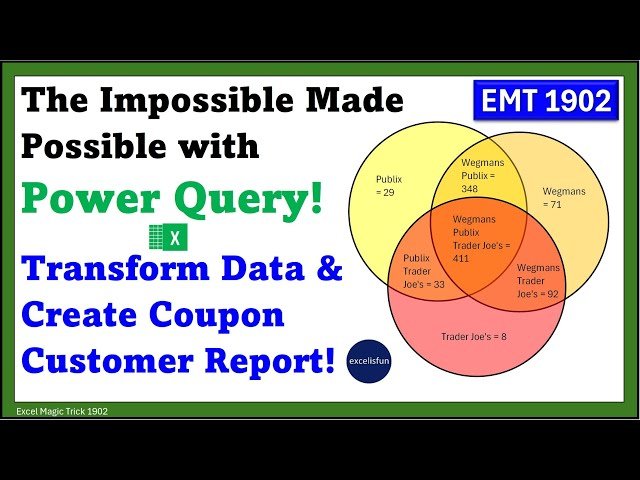
Power Query and M Code to Transform Data and Create Final Marketing Customer Coupon Report - EMT 1902
Automatically move to the next video in the Classroom when playback concludes
- 1 1. 00:00 Introduction.
- 2 2. 00:38 Thanks to Bill Szysz for M Code in this video.
- 3 3. 00:58 Goal for data transformation and final report.
- 4 4. 01:43 Fundamental data problem: we do not have store usage records for all customers. We will have to create the data from existing tables.
- 5 5. 02:04 Download Excel file so you can follow along.
- 6 6. 02:11 Import initial table into the Power Query Editor.
- 7 7. 02:30 Why you always want to remove spaces in M Code Identifiers.
- 8 8. 03:13 Load first table as Only Create Connection.
- 9 9. 03:26 Import second source data table into the Power Query Editor.
- 10 10. 03:31 Remove existing query step.
- 11 11. 03:34 Keep customer & store columns in fSales table.
- 12 12. 03:44 Remove duplicate customer & store records.
- 13 13. 04:36 What is a let expression? And how is structured M Code Syntax?
- 14 14. 06:16 Create left out join using the merge feature: dCustomer table and fSales table.This pulls store names from sales table into the customer table.
- 15 15. 08:19 Reference left outer join query and create intermediate step with customers who used no coupons.
- 16 16. 08:53 Filter to get null records.
- 17 17. 09:09 Group null records to get count and list of customers who did not use coupons.
- 18 18. 10:02 Amend M Code in Table.Group function. We want a list rather than a table.
- 19 19. 11:23 Remove store column from null groupby query.
- 20 20. 11:55 Begin query to create the final report.
- 21 21. 12:11 Filter to remove null records.
- 22 22. 12:22 Why we have to pivot table.
- 23 23. 12:54 Copy store columns.
- 24 24. 13:13 Pivot copied store column with store column as values and the calculations is “Don’t Aggregate”.
- 25 25. 13:56 Groupby feature used on store columns to create count and list of customers in coupon groups.
- 26 26. 15:18 Create custom variable that can create a dynamic set of store names for the Table.Pivot and Table.Group functions. Use the List.Distinct and List.Sort functions.
- 27 27. 17:26 Append Query with Customers who used no coupons to the query with customers who used coupons.
- 28 28. 18:19 Sort Count column Z to A.
- 29 29. 18:26 Create Custom Column with final columns for the final table as lists. Use the Record.ToList and List.RemoveLastN functions, as well as the join operator ampersand, &, and a null list.
- 30 30. 20:55 Create Custom Column with field names for final table.
- 31 31. 22:06 Use the Table.FromColumns function to create the final report table.
- 32 32. 23:25 Load final report and test it.
- 33 33. 24:19 Summary
- 34 34. 24:27 Closing

