Completed
1. 00:00 Introduction.
Class Central Classrooms beta
YouTube videos curated by Class Central.
Classroom Contents
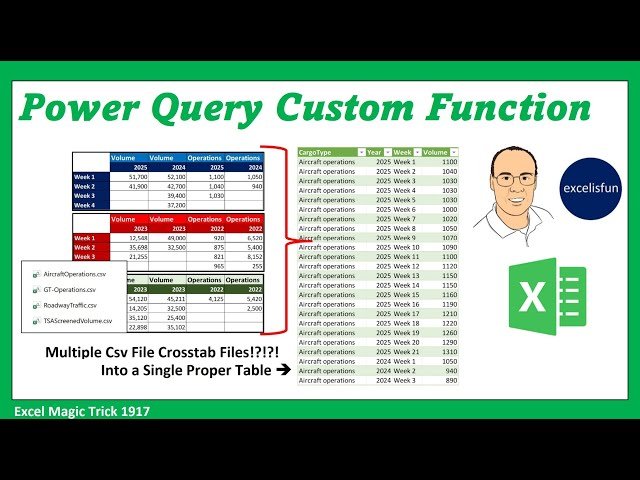
Build Power Query Custom Function - Convert Multiple CSV Cross Tab Tables into Single Table
Automatically move to the next video in the Classroom when playback concludes
- 1 1. 00:00 Introduction.
- 2 2. 00:28 Preview of videos 1917, 1918, and 1919!
- 3 3. 01:03 excelisfun’s Power Query M Code Book.
- 4 4. 01:26 Goal of Video.
- 5 5. 01:38 Preview files used in video. Structure of data files.
- 6 6. 02:26 The ways to import, transform and append cross tabulated cdv files. The three methods will be taught in videos 1917, 1918, 1919.
- 7 7. 03:00 Open Queries and Connections.
- 8 8. 03:15 From Folder feature to import multiple Csv files from Folder.
- 9 9. 04:11 On-Premise Folder Path.
- 10 10. 04:55 Preview of “Hack” method, or “Manual Method” of building code for the Custom Function in the query that uses the Custom Function.
- 11 11. 05:09 Extract single Csv file and create code for Custom Function.
- 12 12. 06:10 Keyboard shortcut to name columns in a Power Query Editor Table from dmclean3324 at YouTube.
- 13 13. 07:10 Notice that in last video Power Query interpreted empty cells in an Excel Table as null values, but Power Query interpreted empty cells in a Csv file as blank zero length text string values.
- 14 14. 08:01 Advanced Editor.
- 15 15. 08:17 What is a let expression?
- 16 16. 09:45 Create a note in the Advanced Editor.
- 17 17. 10:34 Cut M Code from first Query and paste it into a new query.
- 18 18. 11:42 Create a Custom Function. What is a Custom Function?
- 19 19. 14:13 Invoke Custom Function in table with Csv files.
- 20 20. 15:10 Append or Combine tables into single table.
- 21 21. 16:34 Summary of import, build Custom Function, Invoke Function and Append.
- 22 22. 17:00 Load new table to Worksheet.
- 23 23. 17:11 Add new Csv files to folder and refresh: AND everything updates with new data!!
- 24 24. 17:57 Summary
- 25 25. 18:05 Closing

