Completed
12. 06:30 Table.RenameColumns Power Query M Code function.
Class Central Classrooms beta
YouTube videos curated by Class Central.
Classroom Contents
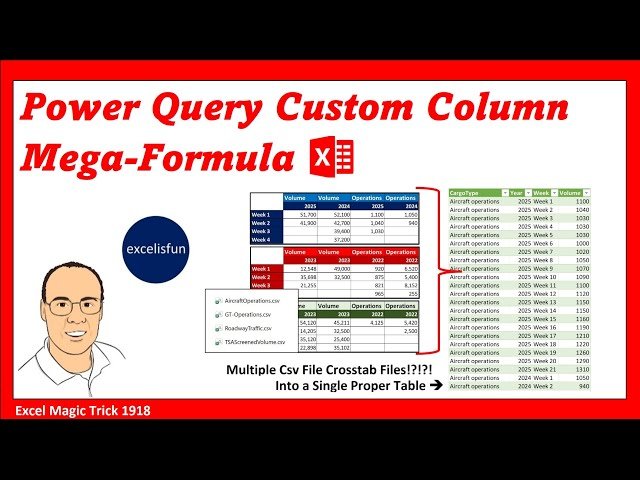
Power Query Nested Functions in Custom Column - Convert Multiple CSV Files into One Table - EMT 1918
Automatically move to the next video in the Classroom when playback concludes
- 1 1. 00:00 Introduction.
- 2 2. 00:23 Preview of videos 1917, 1918, and 1919!
- 3 3. 00:47 excelisfun’s Power Query M Code Book.
- 4 4. 01:15 The problem with storing data in a cross tabulated table.
- 5 5. 01:59 Goal of video and look at files we are working with.
- 6 6. 02:34 From Folder feature to import multiple csv files.
- 7 7. 03:08 Add Custom Column and build formula step by step.
- 8 8. 03:52 Csv.Document Power Query M Code function.
- 9 9. 05:08 Table.Transpose Power Query M Code function.
- 10 10. 05:33 Tip about IntelliSense and accepting function names from the dropdown list: type all lowercase with no spaces and no periods.
- 11 11. 06:03 Table.PromoteHeaders Power Query M Code function.
- 12 12. 06:30 Table.RenameColumns Power Query M Code function.
- 13 13. 07:59 Table.UnpivotOtherColumns Power Query M Code function.
- 14 14. 09:14 Table.SelectRows Power Query M Code function.
- 15 15. 10:31 Table.TransformColumnTypes Power Query M Code function.
- 16 16. 10:35 Tip to help remember M Code: add step, copy M Code, delete step, use M Code in a different step.
- 17 17. 11:43 Finish step that uses the Table.TransformColumnTypes Power Query M Code function.
- 18 18. 12:46 Lookup a column from a table and return as a list. Syntax = Table[ColumnName] = content of column as a list.
- 19 19. 13:17 Table.Combine Power Query M Code function.
- 20 20. 13:32 Summary
- 21 21. 13:45 Load finished table.
- 22 22. 13:57 Test formula by adding new files to the folder.
- 23 23. 14:57 Fun with Mega-Nested M Code Formulas
- 24 24. 15:04 Closing

