Completed
00:00 - Introduction
Class Central Classrooms beta
YouTube videos curated by Class Central.
Classroom Contents
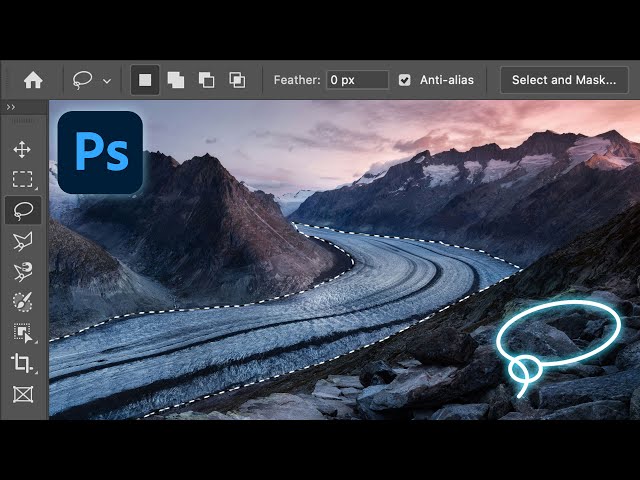
10 Pro Tips for Using Photoshop's Lasso Tool for Better Selections
Automatically move to the next video in the Classroom when playback concludes
- 1 00:00 - Introduction
- 2 00:30 - Tip 1: Switch Between the Lasso and Polygonal Lasso On the Fly
- 3 01:43 - Tip 2: Shortcuts for Adding, Subtracting, and Intersecting Selections
- 4 03:10 - Tip 3: Set Feathering Before Making a Selection
- 5 04:38 - Tip 4: Feather a Selection After Making It
- 6 05:50 - Tip 5: Magnetic Lasso - Auto-Select with Control
- 7 08:15 - Tip 6: Change the Magnetic Lasso Width with Brackets
- 8 09:29 - Tip 7: Zoom In or Out While Making a Lasso Selection
- 9 11:06 - Tip 8: Delete Key Removes Unwanted Anchor Points
- 10 12:03 - Tip 9: Quickly Reselect Your Last Selection
- 11 13:24 - Tip 10: Convert a Lasso Selection into a Precise Path

