Completed
- Intro
Class Central Classrooms beta
YouTube videos curated by Class Central.
Classroom Contents
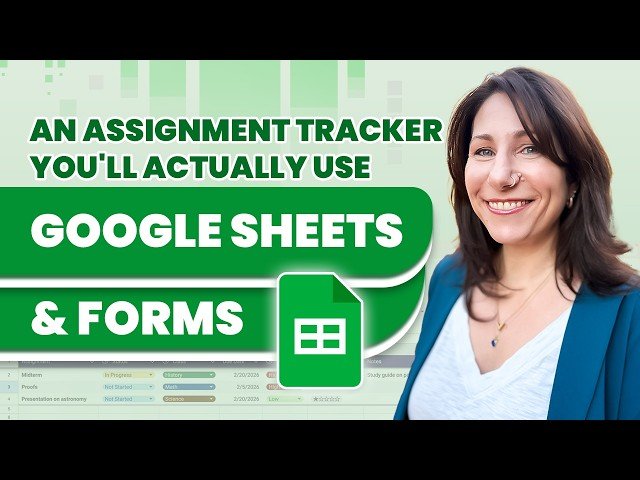
An Assignment Tracker You'll Actually Use - Google Sheets and Forms
Automatically move to the next video in the Classroom when playback concludes
- 1 - Intro
- 2 - Create a Google form to capture your input
- 3 - Link the form responses to a Google Sheet
- 4 - Publish and fill out your form
- 5 - Open the newly created responses sheet
- 6 - A warning about editing form data directly
- 7 - Hide columns and add dropdowns and smart chips
- 8 - Add a “Done” checkbox column to the table
- 9 - Add conditional formatting to a column to mark an assignment as completed
- 10 - Add a “Due Soon” visual indicator for assignments due in the next 7 days
- 11 - Access the form on an iPhone and create an app shortcut
- 12 - Conclusion

